
1. Pick the right package
Match Windows, macOS, Linux, iOS, or Android and the edition you need from the download page.
Help
Step-by-step checks for install problems, VPN failures, posture blocks, and scanner alerts.
Match Windows, macOS, Linux, iOS, or Android and the edition you need from the download page.
Compare SHA-256 when available. Check the digital signature publisher before elevating privileges.
Allow required services when prompted. Reboot if requested, then open FortiClient and add your VPN or EMS configuration.
Confirm hostname, port, and that outbound VPN ports are allowed. Test another network if a captive portal is present.
Verify username format, MFA step, and password status with your identity provider.
Split tunnel or firewall policy may limit destinations. Confirm which hosts should be reachable after connect.
Resume the laptop and reconnect. Some fleets enable auto-connect after wake.
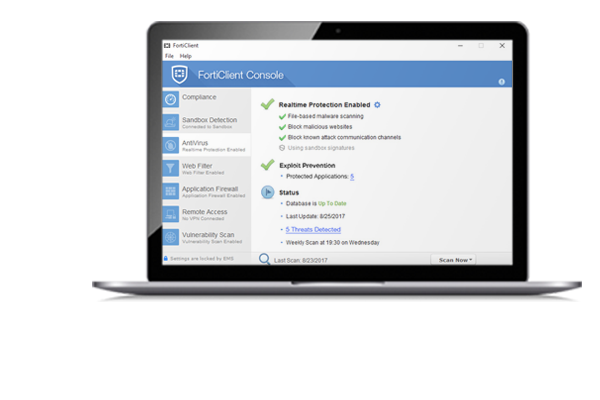
If the client connects but access stays limited, real-time endpoint posture checks may have failed. Typical fixes include enabling local antivirus, installing OS updates, or completing EMS registration as directed by IT.
See ZTNA features for what posture checks are meant to do.
Security clients install drivers, capture traffic, and change routing. Heuristic engines may label unfamiliar builds as risky.
Hash-check the installer, confirm the publisher signature, restore only matching files, and keep the scanner enabled afterward. See download antivirus notes.